
Last Updated: 21st April 2026
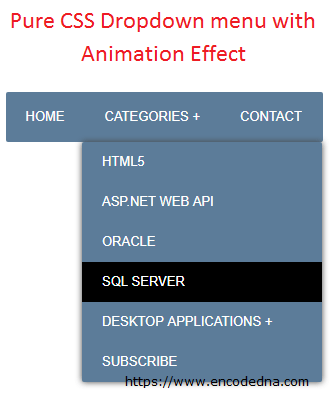
CSS (Cascading Style Sheets) has transformed web design with its powerful styling capabilities. Before CSS, designing and maintaining web pages required significant effort and was far less efficient. Today, with strong support from all modern browsers, CSS remains an essential and enduring part of web development. In this tutorial, I'll show you how to create a simple vertical dropdown menu using CSS, complete with smooth animation effects, without relying on JavaScript.This technique helps reduce code and limit the use of JavaScript. Today browsers can block painstakingly written JavaScript without warning. Using CSS Transition, I have tried to create a little animation for the dropdown menus. I am also using a simple fading effect using CSS transition on the menus.
Browser Support:
Chrome - Yes | Firefox 34.0 - Yes | Internet Explorer 10 - No | Safari - Yes
<html>
<head>
  <title>CSS Animated Dropdown Menu Example</title>

  <style>
     body {
      background-color: #fff;
      font-family: "Segoe UI Light", sans-serif;
    }

    ul {
      margin: 0;
      padding: 0;
      list-style: none;
    }

    /* Main menu */
    #menu {
      display: inline-block;
      background: #5c7c99;
      border-radius: 4px;
      font-weight: 600;
    }

    /* Top-level menu */
    #menu > ul {
      display: flex;
    }

    #menu li {
      position: relative;
    }

    #menu a {
      display: block;
      padding: 15px 20px;
      color: #fff;
      text-decoration: none;
      transition: background 0.25s ease;
    }

    #menu a:hover {
      background: #000;
    }

    /* Submenu */
    #menu ul ul {
      position: absolute;
      top: 100%;
      left: 0;
      min-width: 250px;
      background: #5c7c99;
      border-radius: 4px;
      box-shadow: 0 4px 10px rgba(0, 0, 0, 0.3);

      opacity: 0;
      visibility: hidden;
      transform: translateY(10px);
      transition: all 0.25s ease;
    }

    /* Submenu items */
    #menu ul ul li a {
      padding: 10px 15px;
    }

    /* Show submenu on hover */
    #menu li:hover > ul {
      opacity: 1;
      visibility: visible;
      transform: translateY(0);
    }

    /* Nested submenu (right side) */
    #menu ul ul ul {
      top: 0;
      left: 100%;
    }
  </style>
</head>

<body>
    <p>Roll the mouse over menu headers!</p>

    <div id="menu">
        <ul>
            <li><a href="#">HOME</a></li>
            <li id="categories"><a href="#">CATEGORIES +</a>
                <ul>
                    <li><a href="#">HTML5</a></li>
                    <li><a href="#">ASP.NET WEB API</a></li>
                    <li><a href="#">ORACLE</a></li>
                    <li><a href="#">SQL SERVER</a></li>
                    <li id="da">
                        <a href="#">DESKTOP APPLICATIONS +</a>
                        <ul>
                            <li><a href="#">DATAGRIDVIEW (C#)</a></li>
                            <li><a href="#">CALCULATOR APP</a></li>
                        </ul>
                    </li>
                    <li><a href="#">SUBSCRIBE</a></li>
                </ul>
            </li>
            <li><a href="#">CONTACT</a></li>
        </ul>
    </div>
</body>
</html>To design the Dropdown menu, I've used HTML Unordered List or simply the (<ul></ul>) tag, which I have placed inside the <div></div> tag. The styling is taken care of by the CSS block inside the <head></head> tag.
The transitions allows the menu and its sub menus to animate.
-webkit-transition:all 0.3s linear;
Browser Support:
Chrome - Yes | Edge - Yes | Firefox 34.0 - Yes | Internet Explorer 10 - No | Safari - Yes