
Last Updated: 07th June 2026
You've probably come across websites that invite you to subscribe to their newsletters through a small floating box displayed at the center of the screen. Unlike traditional pop-up windows, this approach is less intrusive while still being highly effective at capturing user attention.In this article, I'll show you how to create a transparent, centered floating DIV using CSS that works consistently across modern browsers.
😃 Hey there,
This tutorial and its example are outdated, even though the concept is still correct. For the most accurate and modern approach, please refer to the latest tutorial, which shows latest CSS techniques for floating and centering a <div> using modern CSS features.
Scenario
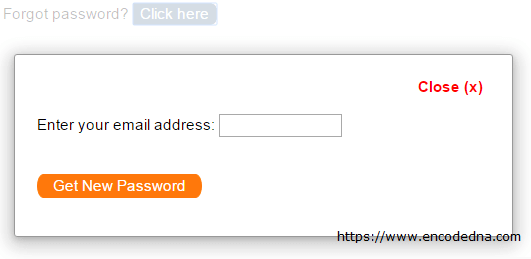
First, let's add a few basic controls: two buttons and a text box. To keep things simple, imagine a common "Forgot Password" scenario. When the user clicks the Forgot Password button, a small floating DIV appears at the center of the screen, allowing them to enter the required information or perform the next step.
However, the most important part of this example is the CSS. This is where the real focus lies, as it demonstrates how to create a transparent DIV that floats at the center of the screen.
Note: I have removed jQuery from the example and added plain JavaScript for simplicity.
We need to add some styling to the elements so that our <div> floats at the center of the page.
<style>
    input { cursor: pointer; }

    /* this will keep the element fixed at the center */
    #centerDIV {
        position: fixed;
        top: 0;
        left: 0;
        background-color: rgba(255, 255, 255, 0.75);
        width: 100%;
        height: 100%;
        padding-top: 100px;
        display: none;	/* keep the element hidden */
    }

    /* this element will float */
    .divFloat {
        margin: 0 auto;
        background-color: #FFF;
        border: solid 1px #999;
        color: #000;
        width: 400px;
        height: auto;
        padding: 20px;
        -webkit-border-radius: 3px;
        -webkit-box-orient: vertical;
        -webkit-transition: 200ms -webkit-transform;
        box-shadow: 0 4px 23px 5px rgba(0, 0, 0, 0.2), 0 2px 6px rgba(0, 0, 0, 0.15);
        display: block;
    }
    .btClickHere {
        background-color: #587898;
        border: solid 1px #587898;
        color: #FFF;
        -moz-border-radius: 0 7px 7px 0;
        -webkit-border-radius: 0 7px 7px 0;
        border-radius: 0 7px 7px 0;
    }
    .btClose {
        margin: 0 auto;
        background-color: #FFF;
        color: red;
        border: none;
        width: auto;
        float: right;
        clear: both;
    }
    .btGetPass {
        color: #FFF;
        padding: 2px 4px;
        width: 150px;
        background-color: #FF780B;
        border: solid 1px #FF780B;
        border-top-right-radius: 10px 20px;
        border-bottom-right-radius: 10px 20px;
        border-bottom-left-radius: 10px 20px;
        border-top-left-radius: 10px 20px;
        display: block;
    }
</style>
<body>
    <div style="padding:20px;">
        Forgot password?  <input type="button" id="btClick" class="btClickHere" value="Click here" />
    </div>
    <div id="centerDIV">
        <!-- The element which will float at the center of the screen -->
        <div class="divFloat">
            <input type="button" id="btClose" class="btClose" value="Close (x)" />
            <p style="text-align: left; padding:20px 0;">Enter your email address:
                <input type="text" id="tbEmail" style="width:300px;" maxlength="100" />
            </p>
            <p><input type="button" class="btGetPass" value="Get New Password" /></p>
        </div>
    </div>
</body>
The floating, transparent and centered DIV is ready. Just a small script is required to show it.
👉 Do you know you can add a transparent text over an image using pure CSS? Check this post.
This is optional. I said this in the beginning, the script only show and hide the floating DIV.
<script>
  window.addEventListener('click', function (e) {
    if (document.getElementById('btClick').contains(e.target)) {
      document.getElementById('centerDIV').style.display = 'block';
    }

    if (document.getElementById('btClose').contains(e.target)) {
      document.getElementById('centerDIV').style.display = 'none';
    }
  })
</script>
An Overview
#centerDIV {
    position: fixed;
    top: 0;
    background-color: rgba(255, 255, 255, 0.75);
    width: 100%;
    height: 100%;
    padding-top: 100px;
}
ID "#centerDIV"
The DIV will cover the entire page using its width and height property, which I have set as "100%". The idea it to disable all other controls on the page, so the focus remains on the textbox control inside the floating DIV. The floating DIV will remain at the center of the screen even when you scroll the page up and down. It will behave like a Model popup control.
The properties position:fixed and top:0 plays an important role in this context. Setting the "top" property to 0 will keep the DIV always on the top.
👉 More on CSS position property: How to Float an element Right with position absolute using CSS