
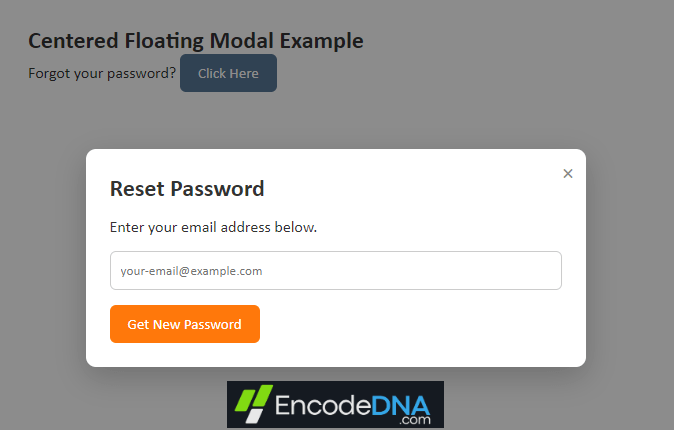
The CSS
<style>
    * {
        box-sizing: border-box;
        margin: 0;
        padding: 0;
        font-family: Calibri, Arial, sans-serif;
    }

    body {
        padding: 2rem;
        font-size: 1rem;
        color: #333;
    }

    button {
        cursor: pointer;
    }

    /* Open Button */
    .btn-open {
        padding: 10px 18px;
        border: none;
        border-radius: 6px;
        background: #587898;
        color: #fff;
        font-size: 15px;
    }

    /* Overlay */
    .modal-overlay {
        position: fixed;
        inset: 0;
        display: flex;
        align-items: center;
        justify-content: center;

        background: rgba(0, 0, 0, 0.45);

        opacity: 0;
        visibility: hidden;
        transition: opacity .25s ease;
    }

    .modal-overlay.show {
        opacity: 1;
        visibility: visible;
    }

    /* Floating Window */
    .modal {
        position: relative;
        width: min(500px, 90vw);
        background: #fff;
        border-radius: 10px;
        padding: 24px;
        box-shadow: 0 10px 30px rgba(0,0,0,.2);

        transform: translateY(-15px);
        transition: transform .25s ease;
    }

    .modal-overlay.show .modal {
        transform: translateY(0);
    }

    .modal h2 {
        margin-bottom: 15px;
    }

    .modal p {
        margin-bottom: 15px;
    }

    .modal input[type="email"] {
        width: 100%;
        padding: 10px;
        border: 1px solid #ccc;
        border-radius: 6px;
        margin-bottom: 15px;
    }

    .btn-submit {
        padding: 10px 18px;
        border: none;
        border-radius: 6px;
        background: #ff780b;
        color: #fff;
        font-size: 15px;
    }

    /* Close Button */
    .btn-close {
        position: absolute;
        top: 10px;
        right: 12px;

        border: none;
        background: none;

        font-size: 22px;
        color: #888;
    }

    .btn-close:hover {
        color: #e74c3c;
    }
</style>
The above CSS uses latest layout techniques to create a cleaner, more responsive modal dialog. The overlay is positioned using position: fixed and inset: 0, allowing it to cover the entire viewport regardless of scrolling.
Instead of relying on margins and padding (see previous example) for positioning, Flexbox (display: flex, align-items: center, and justify-content: center) is used to perfectly center the modal both vertically and horizontally.
The Markup
<body>
  <h2>Centered Floating Modal Example</h2>
  <p>
    Forgot your password?
    <button id="btnOpen" class="btn-open"> Click Here </button>
  </p>

  <div id="modalOverlay" class="modal-overlay">
    <div class="modal">

      <button id="btnClose" class="btn-close">×</button>

      <h2>Reset Password</h2>

      <p>Enter your email address below.</p>
      <input type="email" id="email" placeholder="your-email@example.com">

      <button class="btn-submit">
        Get New Password
      </button>

    </div>
  </div>
</body>The Script
The script is optional. You can ignore it if you want. It simply shows the popup, centered and transparent DIV when a button is clicked.
  <script>
    const modalOverlay = document.getElementById('modalOverlay');
    const btnOpen = document.getElementById('btnOpen');
    const btnClose = document.getElementById('btnClose');

    // Open modal
    btnOpen.addEventListener('click', () => {
        modalOverlay.classList.add('show');
    });

    // Close modal
    btnClose.addEventListener('click', () => {
        modalOverlay.classList.remove('show');
    });

    // Close when clicking outside the modal
    modalOverlay.addEventListener('click', (e) => {
        if (e.target === modalOverlay) {
            modalOverlay.classList.remove('show');
        }
    });

    // Close with ESC key
    document.addEventListener('keydown', (e) => {
        if (e.key === 'Escape') {
            modalOverlay.classList.remove('show');
        }
    });
  </script>
That's it.
Conclusion
Better user experience matters and it begins with clean, maintainable code. Creating a centered, floating modal dialog is much easier today than it was a decade ago (see this previous example). Latest CSS features such as Flexbox, inset, responsive sizing, and smooth transitions allow us to build clean, lightweight solutions with minimal code and without relying on browser-specific hacks. By separating presentation from behavior and using CSS classes to control visibility, the code becomes easier to read, maintain, and extend.