
image

Change Shape Color Based on Cell Values in Excel
Let's assume you have a single rectangle shape on your Excel worksheet, and you want a macro to change its color automatically based on specific cell values. For this example, imagine a column named Status with three rows. The color of the rectangle will update dynamically depending on the values entered in these cells, making it easy to visualize different statuses or conditions at a glance.
Here are the conditions.
• When I enter the value shipped in the second row (A2), the color turns to yellow.
• When I enter the value delivered in the third row (A3), the color turns green.
• When I enter the value on hold in the fourth row (A4), the color turns red.
• When there are no values in either the cells in all the 3 rows, the shape’s color would be "white".
So, let's do it.
Open an Excel file and insert a rectangle shape in your worksheet. You can set the default color as white.
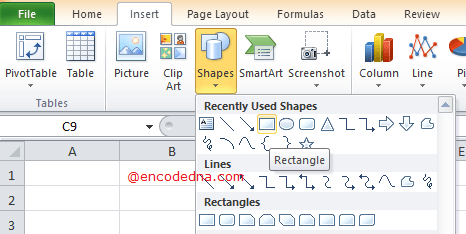
Click Alt + F11 to open the VBA editor. From Project Explorer, double click the Sheet where you have the data. You can also right click the sheet tab and choose View Code.
Write the code inside Worksheet_Change event. Since, I want to change the shape's color instantly when the value in any cell changes.
Option Explicit

Private Sub Worksheet_Change(ByVal Target As Range)

    ActiveSheet.Shapes("Rectangle 1").Fill.ForeColor.RGB = vbWhite         ' White is the default color.

    If UCase(ActiveSheet.Cells(2, 1)) = "SHIPPED" Then
        ActiveSheet.Shapes("Rectangle 1").Fill.ForeColor.RGB = vbYellow
    End If

    If UCase(ActiveSheet.Cells(3, 1)) = "DELIVERED" Then
        ActiveSheet.Shapes("Rectangle 1").Fill.ForeColor.RGB = vbGreen
    End If

    If UCase(ActiveSheet.Cells(4, 1)) = "ON HOLD" Then
        ActiveSheet.Shapes("Rectangle 1").Fill.ForeColor.RGB = vbRed
    End If

End Sub
The color of the shape changes according to the values, which I have explained earlier. Now, see this line in the above code, especially the Shapes() function.
ActiveSheet.Shapes("Rectangle 1").Fill.ForeColor.RGB = vbWhiteThe Shapes() function
The function Shapes() takes a parameter, the name of the shape. "You can get the name" of the shape by clicking on the shape and see its name in the Name Box. You can change the name of the shape right there.
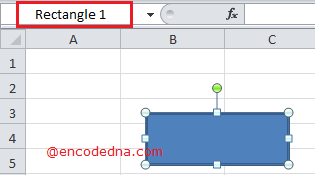
Similarly, you can add different shapes like a circle or an arrow, get its name, provide the name to the function and change the shape’s color using the code.
👉 Also, try this: You can change the color of multiple shapes using the example that I have explained above. Simply add more shapes to your sheet and provide the names of each shape to the function. Like this …
ActiveSheet.Shapes("Rectangle 1").Fill.ForeColor.RGB = vbRed      ' For rectangle or square shape.

OR

ActiveSheet.Shapes("Oval 1").Fill.ForeColor.RGB = vbBlue   ' For circle.
🌈 If you need help choosing consistent or visually appealing colors for your shapes, try our Color Palette Generator.