
Last Updated: 06th June 2026
A drop-down list in Excel helps maintain data accuracy and consistency by restricting users to predefined values when entering data into a cell. Using Excel's Data Validation feature, you can easily create, edit, or remove drop-down lists in your worksheet. Simply follow the steps below to manage your drop-down lists efficiently.Advantages of Using a Drop-Down List
The drop-down list in this example contains a set of predefined values from which users can select. By limiting entries to approved options, it helps ensure data consistency and reduces the likelihood of errors during data entry. Since users can only choose values from the list—similar to selecting from master data—it prevents invalid or inconsistent information from being entered into specific cells.
Using Data Validation to Control Data Entry
Excel's Data Validation feature is ideal for situations where you need to restrict users to specific values. It helps maintain data accuracy by preventing the entry of invalid or unnecessary information into cells. When a drop-down list is applied through Data Validation, users can only select values from the predefined list. If they attempt to enter a value that is not included in the list, Excel displays an error message indicating that the entered value is not valid.
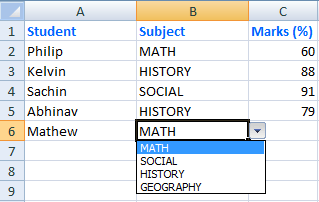
See the above image again. It shows three columns with "Students Name", Subject and Marks respectively. The Subject column shows the dropdown control with a list of pre-defined subjects.
Now let me show you how to create a drop-down list. Follow these steps.
1. Create a new Excel file and open it. By default, it will have three sheets. We need two sheets for the demo. Sheet1 will be used for data entry and Sheet2 will work like a master sheet.
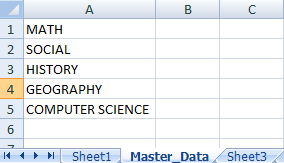
2. Name the sheet2 as Master_Data and add few rows of data in the first column.
3. Next, assign a name to the list of values that will be used in the drop-down menu. Select the cells containing the master data, then right-click and choose Define Name (or Name a Range, depending on your Excel version). This will open the New Name dialog box, where you can specify a name for the selected range.
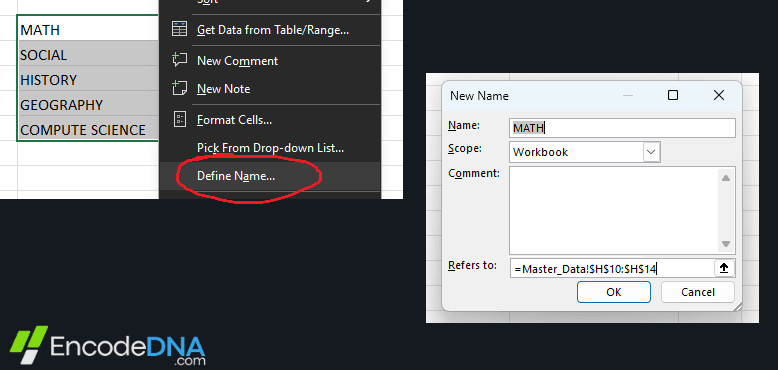
4. In the Name column, type the SUBJECTS and do not change the value in Scope column, which is set as Workbook. Now the name range subjects, will be available throughout the workbook.
5. In the same dialog there is another column at the end called Refers to. This will have a range of selections pointing to the “Column” and the number of Rows.
For example, I have selected "5" rows in the "H" column and it read like =Master_Data!$H$10:$H$14.
6. You can reset the range manually if you want to add more data to the list or remove certain values from the list.
Note: Multiple name range can be created and you can have an entire sheet filled with master data. And these lists can be hooked with multiple columns throughout the workbook.
Add the List with the Column
Once you have created the name range, it is now time to "add this range to a column", so that the user can select data from this pre-defined list.
In Sheet1 we have 3 columns as mentioned earlier and the 2nd column named Subject will be hooked to the name range.
Follow these steps.
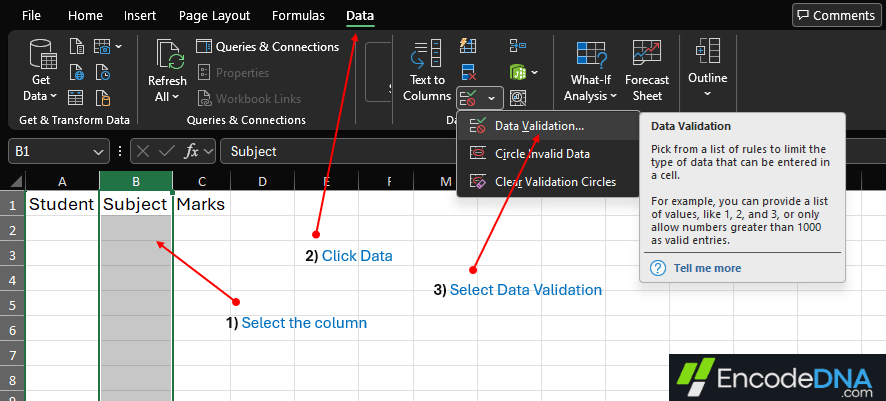
01) Select the column (Subject), in which you want to display the drop-down list. From the top menu, click the Data tab and find Data Validation tool. Clicking the button will open the Data Validation dialog box.
02) In Settings tab you will see a list of validation criteria. In the Allow dropdown list, choose the option List. It will now show a input box named Source.
03) The "Source" will be the master data showing a list of pre-defined values in a dropdown list. In the input box enter =SUBJECTS. This is the name range we created in Sheet2.
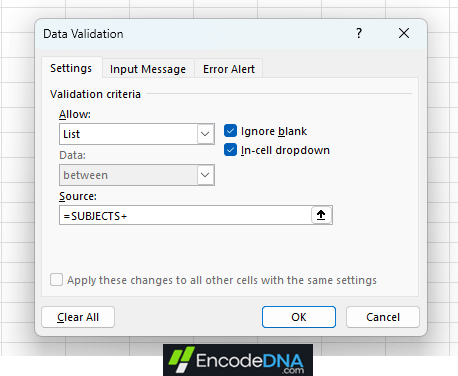
Well, that's it. Now, every-time you set focus on a cell in 2nd column, it will show a Dropdown list with the values from the name range SUBJECT.
Remove DropDown List option in Excel
At any point of time if you want to "remove" the dropdown list from the entire column then open the Data Validation dialog box (follow step 1 and 2) and click the "Clear All" button and press "Ok".
An entire range of master data can be created with different types of values to create multiple dropdown lists. However, it comes with a small drawback. This process is entirely manual and if the user copies data from another cell or range and pastes it in a cell (or the entire range) with Data Validation, then the validation will not work.
Coping and pasting data in Excel sheets are very common, but one has to be careful when pasting data on these cells. This will negate or remove the Data Validation rules.