
For beginners learning desktop application development in WinForms with C# and VB.NET, the ComboBox is an essential control for creating user friendly forms and improving data input experiences.
What is a ComboBox?
A ComboBox displays a list of items when the user clicks the dropdown arrow ▼. Users can then select an option from the list.
It can be used for,
- Choosing a Category
- Selecting a country or city
- Picking a font size or theme
- Selecting employee designation
- Displaying predefined options
In WinForms, the ComboBox control belongs to the "System.Windows.Forms" namespace. See this example.
Properties of ComboBox
Here are some important properties every beginner should know. These properties are commonly used in development.
1. "Items" Property
The Items property is used to stores the list of values displayed in the ComboBox.
C#
This is how add items to a ComboBox dynamically. Using code behind procedure.
comboBox1.Items.Add("Science");
comboBox1.Items.Add("Mathematics");
comboBox1.Items.Add("Sanskrit");
VB.NET
With ComboBox1
    .Items.Add("Science")
    .Items.Add("Mathmatics")
    .Items.Add("Sanskrit")
End With
👉 Note: You can drag and drop a ComboBox element and add items to it while designing the form. Check this out.
2. "SelectedIndex" Property
The SelectedIndex property "gets" or "sets" the index of the selected item.
C#
comboBox1.SelectedIndex = 0;
This selects the first item in the list.
VB.NET
ComboBox1.SelectedIndex = 0
3. "SelectedItem" Property
The SelectedItem property "returns the currently selected item".
Note: The properties are "case sensitive".
C#
string item = comboBox1.SelectedItem.ToString();
VB.NET
Dim item As String = ComboBox1.SelectedItem.ToString()
4. "Text" Property
The Text property "gets" or "sets" the text shown in the ComboBox.
C#
comboBox1.Text = "Select Fruit";
VB.NET
ComboBox1.Text = "Select Item"
5. "DropDownStyle" Property
The DropDownStyle controls whether users can type custom values.
Some common options are:
- DropDown
- DropDownList
- Simple
C#
comboBox1.DropDownStyle = ComboBoxStyle.DropDownList;
This actually restricts users to selecting only from the list.
VB.NET
ComboBox1.DropDownStyle = ComboBoxStyle.DropDownList
Example:
Now let's see a real time example.
Its a simple but practical example. I'll add a "Button" and "ComboBox" in my form. Using code behind procedures I'll add (or insert) a few "programming languages" in the ComboBox. When you click the "Button" it displays the selected value in a message box
Follow these steps.
- 1. Create a new WinForms application.
- 2. Open the forms design window.
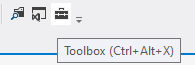
- 3. Click the "Toolbox" icon. It will open the "Toolbox" panel at the left side of the screen.
- 4. In the "Toolbox" panel, click Common Controls option and drag and drop a "Button" control and a "ComboBox" control on the form.
Write the code.
C#
private void Form1_Load(object sender, EventArgs e)
{
    ComboBox1.Items.Add("Science");
    ComboBox1.Items.Add("Mathmatics");
    ComboBox1.Items.Add("Sanskrit");
    ComboBox1.Items.Add("AI");

    ComboBox1.SelectedIndex = 0;
}

private void button1_Click(object sender, EventArgs e)
{
    MessageBox.Show("Selected Language: " + ComboBox1.SelectedItem);
}
Run the application. You will see a Button and ComboBox with "first" value selected. Since I have set the SelectedIndex as "0".
VB.NET
Private Sub Form1_Load(sender As Object, e As EventArgs) Handles MyBase.Load
    With ComboBox1
        .Items.Add("Science")
        .Items.Add("Mathmatics")
        .Items.Add("Sanskrit")
        .Items.Add("AI")

        .SelectedIndex = 0
    End With
End Sub

Private Sub Button1_Click(sender As Object, e As EventArgs) Handles Button1.Click

    MessageBox.Show("Selected Language: " & ComboBox1.SelectedItem)

End Sub
👉 Next, learn how to bind and display a ComboBox in a DataGridView Cell. The codes are written both in C# and VB.NET.
Benefits of Using ComboBox
There a few benefits of using a ComboBox in WinForms application. It saves screen space, improves "user experience" and reduces invalid input (since items are pre stored).
The form remains clean and its easier to use.
Conclusion
The WinForms ComboBox control is simple yet powerful. It helps developers provide users with predefined choices while keeping applications organized and interactive.